
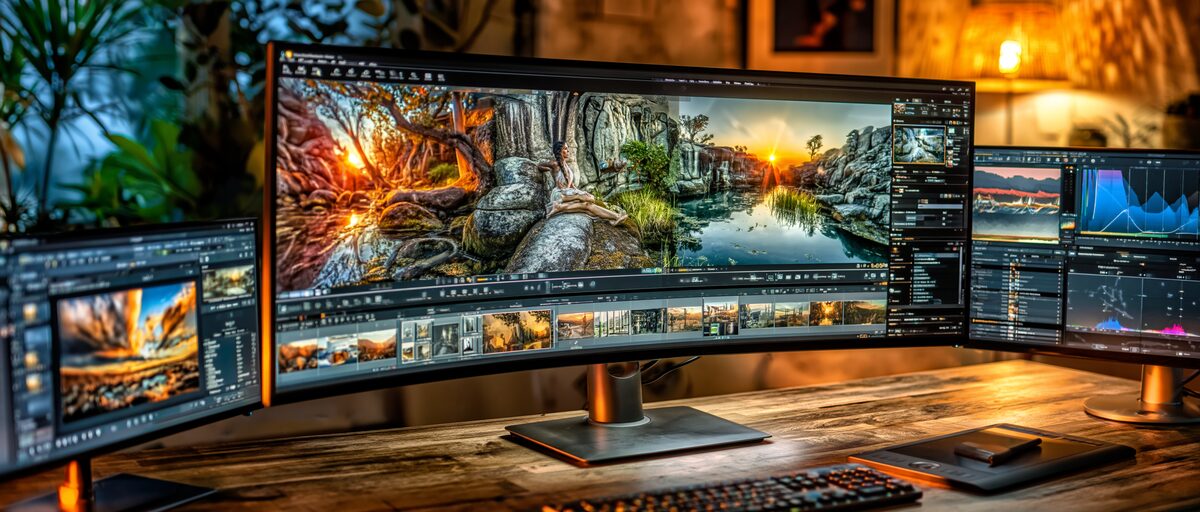
Computers and Laptops: Buying a Computer
Whether you need an ultraportable notebook for working on the move, a powerful desktop workstation for demanding creative projects, or a high-resolution monitor that brings everything into sharp focus, choosing the right computer setup is one of the most important buying decisions you will make. This guide walks you through every key consideration — from processors and memory to screen technology and connectivity — so you can invest confidently in a system that genuinely fits the way you work, create, and live.
Laptop or Desktop: Which Is Right for You?
Before comparing specifications and features, the most fundamental question is whether you need portability or raw power — or some balance of the two.
A laptop consolidates everything into a single portable device: processor, memory, storage, screen, keyboard, trackpad, speakers, webcam, and battery. You can work from a café, a train, your sofa, or your desk. The trade-off is that laptops are generally harder to upgrade, generate more heat under sustained workloads, and their screens are physically smaller than standalone monitors.
A desktop computer separates these components. The processing unit sits on or under your desk, and you connect your own monitor, keyboard, and mouse. This separation means desktops can accommodate more powerful processors and graphics cards, benefit from superior cooling, and are significantly easier to upgrade over time. The trade-off is obvious: they stay where you put them.
For many people, the right answer is a laptop paired with an external monitor and keyboard for desk use. This hybrid approach gives you portability when you need it and a comfortable, full-sized workspace when you are at home. If you never need to take your computer anywhere, a desktop almost always offers better performance and value for the same budget.
Understanding Laptop Categories
Laptops are no longer a single product category. The market has diversified into distinct types, each optimised for different priorities. Understanding these categories will immediately narrow your search.
Ultraportable Notebooks (11 to 14 Inches)
These are designed for maximum portability. Weighing between 0.9 kg and 1.5 kg (roughly 2 to 3.3 pounds), ultraportables slip into any bag and are comfortable to carry all day. Screen sizes typically range from 13 to 14 inches, which is large enough for productive work while keeping the overall footprint compact.
Modern ultraportables have become remarkably capable. Efficient processors from both Intel and Apple now deliver strong performance without draining the battery, and many models achieve genuine all-day battery life of 15 hours or more in real-world use. The best ultraportables pair their compact dimensions with sharp, high-resolution OLED or IPS displays that make text crisp and colours vivid.
The compromise with ultraportables is limited port selection (many rely heavily on USB-C), smaller keyboards that may feel cramped for people with larger hands, and thermal limitations that restrict sustained heavy workloads like video rendering or 3D modelling. For writing, browsing, email, spreadsheets, presentations, video calls, and general productivity, they are excellent.
Standard Notebooks (15 to 16 Inches)
This is the most popular laptop size category, and for good reason. A 15 or 16-inch screen provides noticeably more working space than an ultraportable, often includes a dedicated number pad on the keyboard, and generally accommodates more powerful processors and better cooling systems.
These laptops typically weigh between 1.6 kg and 2.3 kg (3.5 to 5 pounds). They are still portable enough to move between rooms or carry to an office, but you will feel their presence in a backpack during a long commute. Battery life varies widely depending on specifications and screen type, but expect anywhere from 8 to 18 hours for productivity-oriented models.
Standard notebooks hit the sweet spot for most users. They are large enough to work on comfortably without an external monitor, powerful enough to handle moderately demanding tasks, and portable enough to travel when needed. If you can only have one computer and do not have extreme requirements in either direction, this is typically the best category to explore.
Desktop Replacement Laptops (17 Inches and Above)
At 17 inches and beyond, laptops enter desktop-replacement territory. These machines prioritise screen size and raw power over portability. They often feature high-performance processors, dedicated graphics cards, advanced cooling systems, and large batteries — though that battery still drains faster than smaller laptops due to the power demands of the components and screen.
Weighing 2.5 kg (5.5 pounds) or more, these are laptops you set up on a desk and occasionally move. They are popular with gamers, video editors, 3D artists, and anyone who needs serious processing power but occasionally requires the flexibility to relocate their workstation.
2-in-1 Convertibles
Convertible laptops feature a 360-degree hinge that allows the screen to fold completely behind the keyboard, transforming the device into a tablet. Some models use a detachable keyboard design instead. Either way, the goal is to combine the productivity of a laptop with the casual usability of a tablet.
2-in-1s are particularly useful if you take handwritten notes (most support active stylus input), consume a lot of media, or present to small groups by propping the screen in tent mode. The trade-offs are slightly heavier builds compared to standard laptops of the same screen size, and touchscreens that tend to attract fingerprints and produce more glare.
Chromebooks
Chromebooks run ChromeOS, a lightweight operating system built around the Chrome browser and web applications. They are typically the most affordable laptop category and are designed for users whose computing needs are primarily web-based: email, document editing, video streaming, web browsing, and cloud-based applications.
ChromeOS devices tend to boot very quickly, require minimal maintenance, and receive automatic updates. They also support Android applications. The limitation is straightforward: if you need specific desktop software that only runs on Windows or macOS — such as professional video editing, 3D modelling, or specialised business applications — a Chromebook cannot replace those tools.
Key Laptop Specifications Explained
Technical specifications can feel overwhelming, but only a handful genuinely matter for most buying decisions. Here is what each one actually means in practice.
Processor (CPU)
- The processor is the brain of your computer. It determines how quickly your laptop handles tasks, from opening applications to processing large files. Modern processors are identified by their generation and tier.
- For everyday tasks like browsing, email, document editing, and video calls, a mid-range processor is more than sufficient. Look for processors in the "5" tier from Intel (such as Core Ultra 5) or AMD (such as Ryzen 5). These offer an excellent balance between performance, battery efficiency, and cost.
- For demanding workloads like video editing, software development, heavy multitasking, or running virtual machines, step up to the "7" tier (Core Ultra 7, Ryzen 7). These processors provide meaningfully faster performance and handle sustained workloads more gracefully.
- The "9" tier (Core Ultra 9, Ryzen 9) targets professional users with extreme demands. For most people, these processors offer diminishing returns — you pay significantly more for modest performance gains that only manifest during very specific, intensely demanding tasks.
- Apple's M-series processors (M3, M4, M5 and their Pro and Max variants) take a different approach, integrating the CPU, GPU, and memory controller onto a single chip. This architecture delivers exceptional power efficiency, which translates into outstanding battery life. The base M-series chips handle everyday and moderate workloads impressively, while the Pro and Max variants serve creative professionals working with high-resolution video, 3D rendering, and large-scale audio projects.
Memory (RAM)
RAM is your computer's short-term working memory. It determines how many applications and browser tabs you can run simultaneously without the system slowing down.
- 8 GB is the absolute minimum for comfortable use. It handles basic browsing and document work but can feel constrained with many browser tabs open alongside other applications.
- 16 GB is the current sweet spot for most users. It comfortably supports multitasking, moderate creative work, and general productivity without bottlenecks.
- 32 GB or more is worth considering for professional creative work (video editing, music production, large photo catalogues), software development, or running virtual machines. If your work involves keeping many large files or applications open simultaneously, the extra memory pays for itself in smoother workflow.
One important consideration: many modern laptops have RAM soldered directly to the motherboard, meaning it cannot be upgraded after purchase. If there is any chance you might need more memory in the future, buy the higher-memory configuration from the start.
Storage (SSD)
Virtually all modern laptops use solid-state drives (SSDs) rather than older spinning hard drives. SSDs are dramatically faster, more reliable, lighter, and quieter. The question is how much storage you need.
- 256 GB is tight. After the operating system and essential applications, you may have only 150 to 180 GB of usable space. This works for very light users who store most files in the cloud, but it leaves little room for growth.
- 512 GB is comfortable for most people. It provides enough space for your operating system, applications, documents, a reasonable photo library, and some media files.
- 1 TB or more is advisable for anyone working with large files — video projects, extensive photo libraries, game installations, music production files, or large datasets. As with RAM, many laptops do not allow storage upgrades, so plan ahead.
Display
The display is what you look at for every moment you use your computer. It deserves careful consideration.
- Resolution determines sharpness. Full HD (1920 × 1080 or 1920 × 1200) is acceptable on smaller screens up to about 14 inches. On 15 or 16-inch screens, a higher resolution — QHD (2560 × 1440 or 2560 × 1600) or 4K (3840 × 2160) — delivers noticeably crisper text and more detailed images. Higher resolution is particularly important for creative work involving photography, design, or video editing.
- Panel type affects colour accuracy, contrast, and viewing angles. IPS (In-Plane Switching) panels offer good all-round performance with accurate colours and wide viewing angles. OLED panels deliver exceptional contrast (true blacks), vivid colours, and are increasingly common in mid-range and premium laptops. VA panels offer strong contrast but narrower viewing angles.
- Refresh rate describes how many times per second the screen updates its image. Standard displays run at 60 Hz, which is perfectly fine for productivity work. Higher refresh rates (90 Hz, 120 Hz, or 144 Hz) make scrolling, cursor movement, and animations feel noticeably smoother. Gamers benefit most from high refresh rates, but even for general use, a 90 Hz or 120 Hz display feels perceptibly more fluid.
- Brightness is measured in nits. A display with 300 nits works well in indoor environments. If you frequently work outdoors or near bright windows, look for 400 nits or above. HDR-capable displays (typically 500 nits and above) offer more dynamic range for media viewing and creative work.
Battery Life
Manufacturer-quoted battery life figures are measured under idealised conditions and rarely reflect real-world use. As a general rule, expect roughly 60 to 80 percent of the quoted figure during normal mixed use involving documents, web browsing, and video calls.
For genuine all-day use away from a power socket, look for laptops that achieve at least 10 hours in independent tests. Ultraportables with efficient processors regularly achieve 15 hours or more, while gaming laptops and high-performance workstations may only manage 4 to 6 hours.
Screen brightness, the applications you run, wireless connectivity, and whether you are using the discrete graphics card (if present) all dramatically affect battery life. A laptop that lasts 14 hours while editing a document might last only 5 hours while editing video.
Operating Systems: Making the Right Choice
Your choice of operating system shapes your entire computing experience. Each has genuine strengths and meaningful limitations.
Windows
Windows runs on the widest variety of hardware from the most manufacturers, giving you the greatest range of choice in design, specifications, and budget. It supports the broadest library of software, including most business applications, creative tools, engineering software, and games. Windows laptops are available as traditional clamshells, 2-in-1 convertibles, and touchscreen devices.
The trade-off is that Windows laptops generally deliver shorter battery life than comparable macOS devices, and the experience can vary significantly between manufacturers — a premium Windows laptop from one brand may feel very different from a budget model from another.
macOS
macOS runs exclusively on Apple hardware (MacBook Air and MacBook Pro). This tight integration between hardware and software results in a highly polished, consistent experience with excellent performance optimisation and typically outstanding battery life.
The creative and professional software ecosystem on macOS is strong, particularly for music production, video editing, graphic design, and software development. The limitation is reduced choice — you are selecting from Apple's range only, at Apple's price points. Some specialised business and engineering software is only available on Windows, though this gap has narrowed considerably.
ChromeOS
ChromeOS is the lightest-weight option, designed for web-centric computing. It boots in seconds, updates automatically, and requires minimal maintenance. Chromebooks are generally the most affordable computers available and are well-suited for education, basic home use, and anyone whose workflow lives primarily in a web browser. The trade-off is the inability to run traditional desktop applications.
Linux
Linux is a flexible and lightweight operating system, well suited to users who want speed, stability, and control over their computer. It comes in many different flavours, known as distributions, such as Ubuntu, Linux Mint, Fedora, and Zorin OS, each offering its own balance of simplicity, appearance, software choice, and technical control. Modern Linux versions also provide a range of desktop environments, including familiar layouts that resemble Windows as well as cleaner, more modern designs. It can run well on both older and newer hardware, is generally free to use, and is popular with developers, privacy-conscious users, and anyone wanting an alternative to Windows or macOS. The trade-off is that some commercial software and games are not as widely supported, and setup can be less straightforward for beginners depending on the distribution chosen.
Desktop Computers: Towers, All-in-Ones, and Mini PCs
Desktop computers have evolved well beyond the traditional tower-under-the-desk model. Today's desktops come in three distinct forms, each suited to different needs.
Tower Desktops
The traditional tower is a standalone box containing the processor, memory, storage, and often a discrete graphics card. You connect your own monitor, keyboard, and mouse. Towers offer the most processing power, the best cooling (which allows sustained high performance), and unmatched upgradeability. You can typically add more RAM, swap storage drives, install a more powerful graphics card, or even upgrade the processor over time.
Towers range from compact mini-tower designs that sit neatly beside a monitor to full-size cases designed for high-performance gaming or professional workstation use. They are the best choice for anyone who prioritises raw performance, future upgradability, or has specific hardware requirements (such as multiple graphics cards or large amounts of storage).
All-in-One Desktops
All-in-one (AIO) desktops integrate the computer's components behind the display in a single unit. You get a clean, minimal desk setup with just one power cable, a keyboard, and a mouse. AIOs typically feature attractive displays and take up far less space than a tower-and-monitor combination.
The compromise is limited upgradeability. Because everything is built into the display housing, you generally cannot replace the processor or graphics card, and RAM and storage upgrades may be difficult or impossible depending on the model. If any component fails after the warranty period, repairs can be more complex and costly.
AIOs are excellent for home offices, reception desks, shared family computing spaces, and anyone who values aesthetics and a tidy workspace over future expandability.
Mini PCs
Mini PCs are a rapidly growing category — compact units, some barely larger than a paperback book, that deliver surprisingly capable performance. You connect them to any monitor via HDMI, DisplayPort, or USB-C, and pair them with your preferred keyboard and mouse.
Modern mini PCs handle everyday productivity, web browsing, media streaming, and even moderate creative work with ease. Their small size makes them ideal for tight workspaces, mounting behind a monitor with a VESA bracket, or tucking out of sight entirely. The trade-off is limited expandability and, in most cases, reliance on integrated graphics rather than a dedicated graphics card. For gaming or heavy 3D rendering, a mini PC is generally not the right choice.
Monitors: Choosing the Right Display
Whether you are pairing a monitor with a desktop or using one as an external display for your laptop, the monitor you choose profoundly affects your comfort, productivity, and the quality of your work.
Screen Size
Screen size involves a direct trade-off between workspace and physical desk space.
- 24 inches is compact and affordable. It works well on smaller desks and for straightforward tasks. A 24-inch monitor at Full HD resolution delivers sharp, comfortable text and images.
- 27 inches has become the most popular size, and for good reason. It provides noticeably more working space than a 24-inch display — enough to comfortably view two documents side by side — without dominating your desk. At this size, a QHD (2560 × 1440) resolution is the sweet spot for sharp text and detailed images.
- 32 inches and above offer generous workspace ideal for creative professionals, data analysis, and anyone who benefits from seeing more content simultaneously. At 32 inches, a 4K (3840 × 2160) resolution is strongly recommended to maintain crisp text. Lower resolutions at this size can appear slightly soft or pixelated. I recently went from a 27 inch monitor to a 32 inch monitor and love the extra display space.
- Ultrawide monitors (typically 34 to 40 inches with a 21:9 or 32:9 aspect ratio) provide the equivalent of two monitors in a single seamless display. They are excellent for productivity (spreadsheets, coding, video editing timelines) and immersive gaming. The trade-off is desk space and the fact that some applications do not handle ultrawide aspect ratios gracefully.
Resolution
Resolution determines how much detail the screen can display and directly affects text sharpness, image clarity, and the amount of content you can fit on screen.
- Full HD (1920 × 1080) remains perfectly serviceable on 24-inch monitors. It is the most affordable option and does not require a powerful graphics card.
- QHD / 1440p (2560 × 1440) offers the best balance of sharpness, performance, and value. It is the recommended resolution for 27-inch productivity monitors. Text is noticeably crisper than Full HD, and you gain meaningful extra screen space.
- 4K (3840 × 2160) provides stunning detail and is the standard for creative professional work involving photography, video, and graphic design. It is also increasingly popular for general productivity at 27 inches and above. The trade-off is cost and the fact that 4K requires more graphics processing power, particularly if you also want a high refresh rate.
Panel Technology
IPS (In-Plane Switching) panels offer excellent colour accuracy, wide viewing angles, and consistent brightness. They are the most versatile choice and work well for everything from office productivity to creative work. The latest IPS Black technology improves contrast ratios significantly over standard IPS panels.
VA (Vertical Alignment) panels deliver higher contrast ratios and deeper blacks than standard IPS, making them attractive for media consumption and dark-room use. Viewing angles and colour accuracy are generally slightly narrower than IPS, though modern VA panels have improved considerably.
OLED and QD-OLED panels produce per-pixel lighting, meaning individual pixels can switch off completely for true black. The result is extraordinary contrast, exceptional colour vibrancy, and very fast response times. OLED monitors have become increasingly affordable and are now available in productivity-focused models, not just gaming displays. The primary concern with OLED for office use is the potential for image retention (sometimes called burn-in) from static elements like taskbars displayed for extended periods, though modern OLED monitors include mitigation features.
Refresh Rate for Monitors
For office productivity, a 60 Hz refresh rate is entirely adequate. Scrolling through documents, browsing the web, and general desktop use feel smooth at this standard rate.
A 75 Hz to 120 Hz* refresh rate adds a noticeable improvement to general smoothness, making scrolling, cursor movement, and window management feel more fluid. Many modern productivity monitors now default to 75 Hz or higher.
144 Hz and above is primarily targeted at gamers, where the smoothness translates into a genuinely competitive advantage and more enjoyable experience. If you split your computer time between work and gaming, a 144 Hz monitor serves both purposes well.
Connectivity and Ports: What You Actually Need
Ports and connectivity are frequently overlooked during the buying process but have a significant impact on daily usability.
- USB-C has become the universal standard for modern peripherals. A single USB-C port can carry data, video output, and power delivery simultaneously, meaning you can connect a USB-C monitor that charges your laptop, receives video, and passes through to other peripherals — all through one cable.
- Thunderbolt 4 looks identical to USB-C but delivers faster data transfer speeds and supports daisy-chaining multiple displays. It is particularly valuable for creative professionals who connect high-resolution monitors, fast external storage, and audio interfaces.
- USB-A ports remain important for connecting legacy peripherals — many mice, keyboards, flash drives, and external devices still use the traditional rectangular USB-A connector. Having at least one or two USB-A ports avoids the need for adapters.
- HDMI is the standard connection for external monitors and TVs. Most laptops include at least one HDMI port, though some ultraportables rely on USB-C with a video adapter instead.
- DisplayPort is common on desktop monitors and graphics cards, offering high bandwidth for demanding display configurations (multiple monitors, high resolution, high refresh rate).
- Ethernet provides a more stable and faster wired network connection than Wi-Fi. Most laptops have removed the Ethernet port to save space, but it remains standard on desktop computers and is available via USB-C adapters.
When evaluating any computer, count the ports and consider your daily needs: Do you need to connect an external monitor? Charge your phone? Use a wired mouse? Connect external storage? Transfer files from a camera? Having the right ports built in saves you from accumulating a tangle of adapters and hubs.
Build Quality, Ergonomics, and Longevity
A computer is a significant investment intended to serve you for several years. Build quality and ergonomic design deserve attention beyond raw specifications.
For Laptops
Look for solid construction — metal chassis (aluminium or magnesium alloy) tend to feel more rigid and durable than plastic, though quality plastics can also be excellent. Check the hinge: it should feel firm and smooth, holding the screen at any angle without wobbling.
Keyboard quality varies enormously between manufacturers and models. If possible, try typing on a display model before buying. Key travel (how far the keys press down), tactile feedback, and keyboard layout all affect typing comfort during long sessions.
The trackpad should be responsive, smooth, and large enough for comfortable gesture control. Precision and palm rejection (ignoring accidental touches from your wrists while typing) vary considerably between models.
For Monitors
Ergonomic adjustment is essential if you spend extended periods at your desk. Look for a stand that allows height adjustment, tilt, and swivel at minimum. Pivot (rotating from landscape to portrait orientation) is a valuable bonus for anyone who works with long documents, code, or web pages.
If the monitor's built-in stand does not offer sufficient adjustment, check for VESA mounting compatibility. A VESA-compatible monitor can be attached to an aftermarket monitor arm, giving you far greater flexibility in positioning and freeing up desk space.
For Desktops
Consider noise levels, particularly if your computer will sit on your desk rather than underneath it. Tower desktops with larger fans can run more quietly than compact systems that use smaller, faster-spinning fans to achieve adequate cooling.
Accessibility of internal components matters for future upgrades and maintenance. Tool-free access panels, clearly labelled internal connectors, and spare drive bays all contribute to a system that is easier to maintain and upgrade over its lifetime.
Matching Your Computer to Your Workload
Different tasks place fundamentally different demands on hardware. Here is how to match your workload to the right specifications.
Web Browsing, Email, and Office Documents
This is the lightest computing workload, and virtually any modern computer handles it comfortably. A mid-range processor, 8 GB of RAM (16 GB preferred for heavy browser use), and 256 to 512 GB of SSD storage will serve you well. Prioritise screen quality, keyboard comfort, and battery life (for laptops) over raw processing power.
Creative Work: Photo Editing, Graphic Design
Photo editing and graphic design benefit from a sharp, colour-accurate display, 16 GB of RAM (32 GB for large files), and a fast processor. Look for monitors or laptop displays that cover at least 100% of the sRGB colour space, with DCI-P3 coverage desirable for professional work. A dedicated graphics card helps but is not essential for most photo editing.
Video Editing and 3D Rendering
Video editing is one of the most demanding mainstream computing tasks. It benefits enormously from a fast multi-core processor, 32 GB of RAM (64 GB for professional-grade work), a dedicated graphics card with dedicated video memory, and fast SSD storage. Desktop workstations generally outperform laptops for sustained video work due to superior cooling and the ability to accommodate more powerful components.
Software Development
Developers benefit from a fast processor (for compilation), plenty of RAM (16 to 32 GB, particularly if running virtual machines or containers), and a comfortable keyboard and display. Many developers prefer external monitors — either a single large display or a dual-monitor setup — for the ability to view code, documentation, and application output simultaneously.
General Home and Family Use
For shared family computing — homework, web browsing, video streaming, light gaming, and communication — a mid-range all-in-one or standard notebook offers the best balance of performance, simplicity, and value. Prioritise a good display, comfortable keyboard, and sufficient storage for photos and documents.
Gaming
Gaming places heavy demands on the graphics card (GPU), requiring dedicated graphics hardware rather than integrated graphics. A gaming laptop or desktop needs a capable dedicated GPU, a fast processor, at least 16 GB of RAM, and a high-refresh-rate display. Gaming is the one use case where a desktop almost always offers significantly better value than a laptop — the same budget buys meaningfully more graphical performance in a desktop form factor.
Comparison Table: Computer Types at a Glance
| Feature | Ultraportable Laptop | Standard Laptop | Desktop Tower | All-in-One | Mini PC |
|---|---|---|---|---|---|
| Portability | Excellent | Good | None | None | Minimal |
| Screen Size | 11–14 inches | 15–16 inches | Any (external) | 22–32 inches | Any (external) |
| Performance Range | Moderate | Moderate–High | Moderate–Very High | Moderate–High | Moderate |
| Upgradeability | Very Limited | Limited | Excellent | Limited | Limited |
| Ideal For | Travel, light work | Everyday, mixed use | Power users, gaming | Home office, aesthetics | Compact workspaces |
| Battery | 12–20+ hours | 8–15 hours | N/A | N/A | N/A |
| Desk Space Needed | Minimal | Moderate | Moderate–Large | Moderate | Minimal |
Honest Limitations: What Few Sellers Will Tell You
Every computer involves compromises. Understanding these trade-offs prevents disappointment.
- Thin and light laptops sacrifice sustained performance. Ultraportable laptops can handle bursts of heavy work, but their compact cooling systems mean performance throttles during extended demanding tasks like long video renders. A task that takes 10 minutes on a desktop workstation might take 15 to 20 minutes on an ultraportable with similar specifications.
- Quoted battery life is aspirational. Real-world battery life depends on screen brightness, active applications, wireless activity, and ambient temperature. Expect 60 to 80 percent of the manufacturer's claimed figure during normal mixed use.
- Resolution alone does not make a good display. A 4K display with poor colour accuracy, limited brightness, or a low-quality panel can look worse than a well-calibrated 1440p screen. Resolution is one factor among several.
- All-in-one desktops age faster than towers. Because most components in an AIO cannot be upgraded, the entire unit may need replacing when any single component becomes outdated. A tower desktop can often be kept relevant for longer through incremental upgrades.
- The cheapest option is rarely the cheapest in the long run. Ultra-budget computers often use slower storage, less memory, and lower-quality displays and keyboards. The resulting frustration and earlier replacement can cost more than buying a mid-range machine from the start.
- OLED displays on laptops are gorgeous but have trade-offs. OLED screens offer stunning contrast and colour, but they can consume more battery power when displaying bright content (like white documents and web pages) compared to LCD screens. They may also be susceptible to image retention over time with static content.
- More cores does not always mean faster. Many everyday applications do not effectively use large numbers of processor cores. A 6-core processor running at a higher clock speed can feel faster for daily tasks than a 12-core processor designed for heavily parallelised workloads.
Common Mistakes When Buying a Computer
- Overspending on the processor while neglecting the display. You look at your screen for every moment you use your computer. A good display makes a greater difference to daily satisfaction than a marginally faster processor for most users.
- Buying too little RAM to save money. If RAM cannot be upgraded later (which is increasingly common in laptops), being stuck with 8 GB when your workflow needs 16 GB creates a frustration that lasts for the entire life of the machine.
- Ignoring the keyboard and trackpad. No specification sheet captures how a keyboard feels to type on. If possible, try before you buy. A great screen paired with an uncomfortable keyboard makes for a poor daily experience.
- Choosing the wrong screen size. A 17-inch laptop sounds appealing until you carry it through an airport. A 13-inch laptop sounds wonderfully portable until you try to work on a spreadsheet. Think honestly about where and how you will use the device most often.
- Forgetting about port availability. A laptop with only USB-C ports and no USB-A is fine if you are willing to use adapters or replace all your peripherals. Check what you currently plug into your computer and make sure the new machine can accommodate those connections — directly or through a hub.
- Assuming the most expensive option is the best for you. A high-end gaming laptop is a poor choice for someone who primarily browses the web, and a basic Chromebook is a poor choice for a video editor. Match the machine to your actual needs, not to the most impressive specifications.
- Neglecting ergonomics. A monitor without height adjustment, a laptop without a comfortable keyboard, or a desktop in a case that traps heat will create daily discomfort that no amount of processing power can offset.
Pre-Purchase Checklist
Before making your purchase, work through this checklist to confirm you are choosing the right computer:
Computer Buying Checklist
Use this checklist to make sure you are choosing a computer that fits your actual needs, not just the marketing.
-
Primary use identified — Have you clearly defined what you will use this computer for most often (productivity, creative work, gaming, general home use)?
-
Portability requirements assessed — Do you need to carry this computer regularly, or will it live on a desk?
-
Operating system chosen — Windows, macOS, or ChromeOS — based on the software you need and the ecosystem you prefer?
-
RAM is sufficient for your workload — At least 16 GB for most users, 32 GB or more for creative professionals and developers?
-
Storage matches your needs — Enough SSD capacity for your operating system, applications, and files, with room for growth?
-
Display quality checked — Resolution, panel type, brightness, and colour accuracy appropriate for how you will use the screen?
-
Ports and connectivity verified — Does the machine have the connections you need for your existing peripherals and accessories?
-
Keyboard and trackpad considered — Especially for laptops, have you assessed or read about typing comfort?
-
Upgradeability evaluated — If you might need more RAM or storage in the future, can this machine accommodate upgrades?
-
Monitor ergonomics checked — For desktop setups, does the monitor offer height adjustment, tilt, and swivel, or is it VESA-mountable?
-
Budget includes peripherals — Have you accounted for any additional items you will need, such as an external monitor, keyboard, mouse, or USB hub?
-
Warranty and return policy reviewed — Understand the manufacturer warranty and the retailer's return window before purchasing.